-1.png?width=250&height=75&name=Horizontal%20(4)-1.png)
You can reset your password from the login page or change it from your account settings if you can already sign in.
Option 1: Reset your password from the login page
Use this option if you’ve forgotten your password or can’t sign in with it.
1. Open the KodeKloud login page.
2. Select Forgot password? below the Continue button.
3. Follow the on-screen instructions to reset the password for the email address associated with your KodeKloud account.
4. Once the reset is complete, return to the login page and sign in with your new password.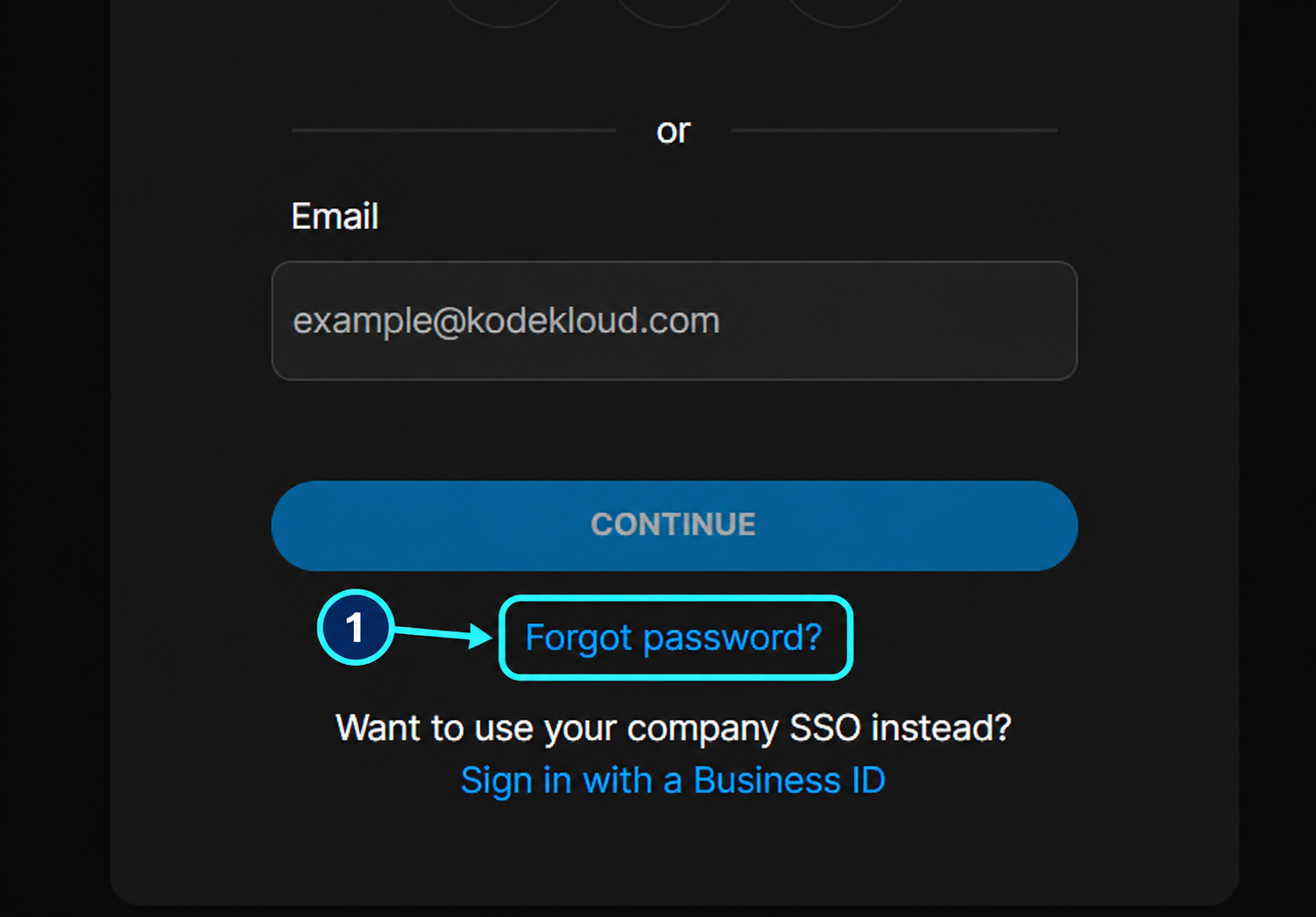
Option 2: Change your password from account settings
Use this option if you can already sign in to your account.
1. Sign in to KodeKloud.
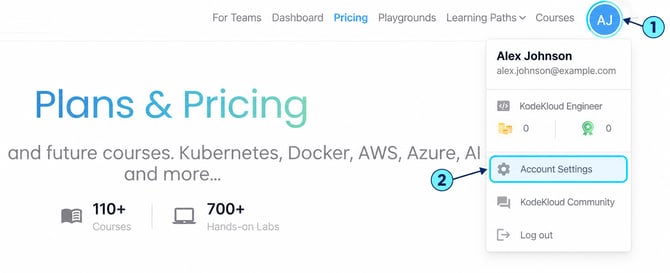
2. Click your profile picture or initials in the top-right corner.
3. Select Account Settings from the menu.
Still need help?
If you can’t complete either process, contact KodeKloud Support at support@kodekloud.com
Include the email address associated with your account and any error message you see. Never share your password or a password-reset link.